Car paint visualizer
Preview a paint direction on your own car
Paint interacts with reflections, panel curves, glass and surrounding light. Choose a color and finish to create an illustrative body-color concept while preserving wheels, windows, lights and background as closely as the source image allows.
Upload your photo, choose one change and compare the result right here.
Your car. Your next idea.
Upload your photo, choose one change and compare the result right here.
02 / SEE THE DIFFERENCE
See color across the body shape
The before-and-after view reveals how a hue reads on highlights, shadows and large panels rather than on a small swatch.
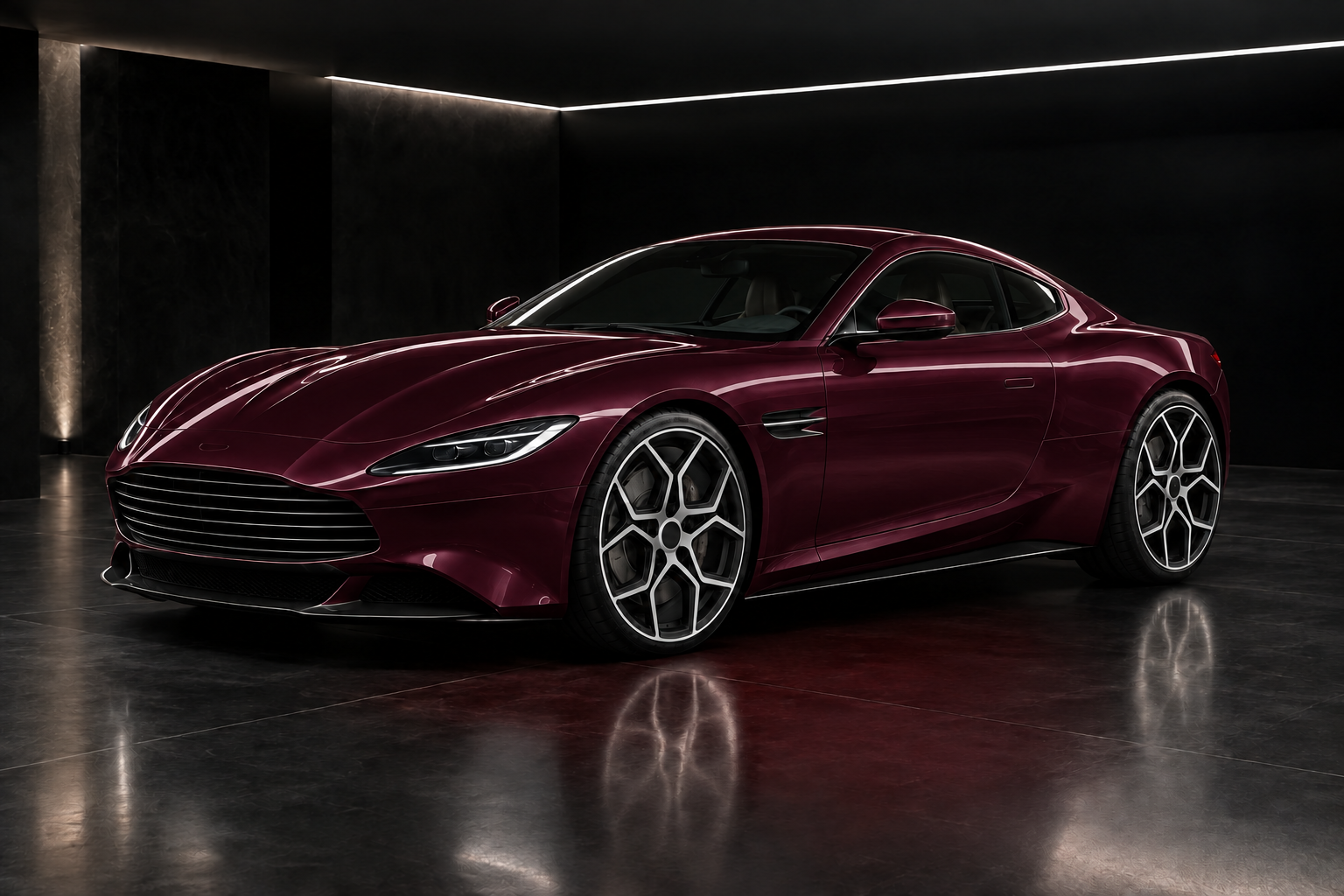
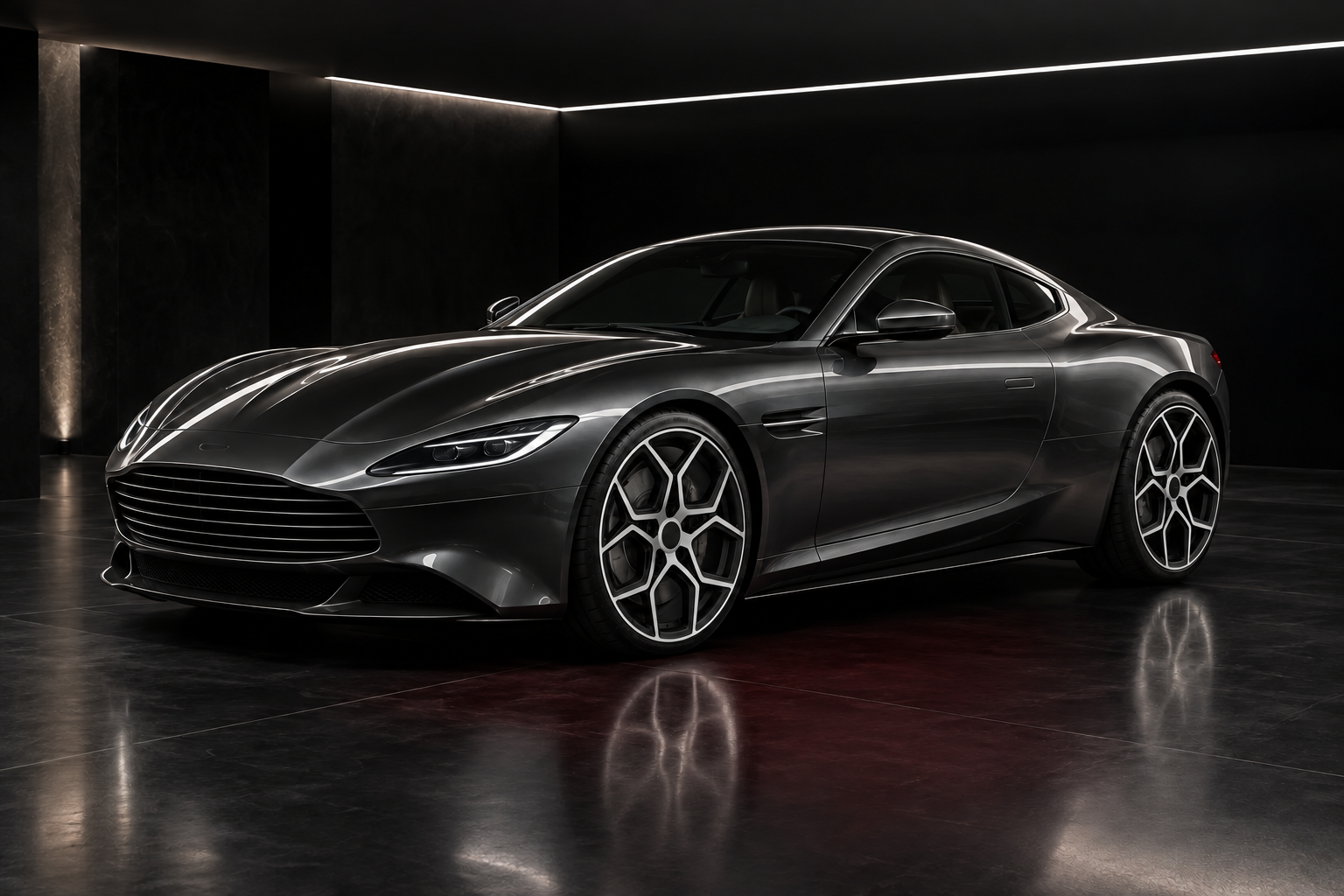 ORIGINAL · CONCEPT CARBurgundy · gloss paint
Use the image to choose samples
Record the hex color and finish with the downloaded concept. Show both to a refinishing shop, then compare physical paint samples in daylight and shade. Screen settings, generated reflections and application methods prevent the preview from serving as an exact color approval.
AI EXAMPLE · CONCEPT CAR03 / MADE FOR YOUR NEXT DECISION
See the color across real body panels
A color swatch cannot show how a long hood, curved fender and dark window line will work together. This car paint visualizer places your chosen color and finish on the photographed body so you can judge the overall direction against the existing wheels and trim.
Use a preset or enter a six-digit hex color, then choose gloss, satin, matte or metallic. Start by comparing colors at one finish; once the hue is shortlisted, compare finishes. A digital color is a reference for discussion, not an OEM paint code or mixing formula.
Compare color families
Explore restrained, bright or dark directions on the same body design.
Review finish character
Assess how gloss, metallic, matte or satin styling changes the concept.
Prepare a refinishing brief
Use the image to discuss direction, then select physical samples with a paint professional.
04 / FROM PHOTO TO PREVIEW
From your photo to a preview in three steps
Prepare the inputs, start the request and save the concept you want to keep.
- 01
Upload your vehicle photo
Use a clean daylight photo with visible body panels and limited harsh reflections.
- 02
Set the requested change
Choose a preset or six-digit hex color, then gloss, satin, matte or metallic. Keep the finish fixed when comparing different colors.
- 03
Generate and compare
Read the image-processing notice, consent and start the preview. Compare the result against the original, then download a concept you want to keep.
05 / CHOOSE WITH INTENT
Compare the four paint finishes
These are generated surface directions. Confirm a real coating on a physical sample before specifying paint.
| Finish | What to look for | What to verify in person |
|---|---|---|
| Gloss | Clearer reflected shapes and contrast across panel curves | Depth and reflected color on a spray-out sample |
| Satin | Softer reflections while body contours remain readable | The chosen product’s actual sheen |
| Matte | Muted reflections and broad areas of color | Surface appearance under sun and shade |
| Metallic | An illustrative sense of sparkle and changing highlights | Flake size, orientation and color on a real sample |
06 / A BETTER STARTING PHOTO
Use a photo that reveals the paint surfaces
- 01
Choose neutral daylight
Colored garage lights and reflected signs can tint the source. Even daylight offers a clearer starting point for comparing body colors.
- 02
Include several body panels
A three-quarter view shows the hood, fender and doors together. Close the doors so their surfaces belong to the same readable body shape.
- 03
Keep reflections under control
Avoid bright glare that hides panel edges or large reflected objects that dominate the doors. Clear glass, trim and lights help define the areas that should stay unchanged.
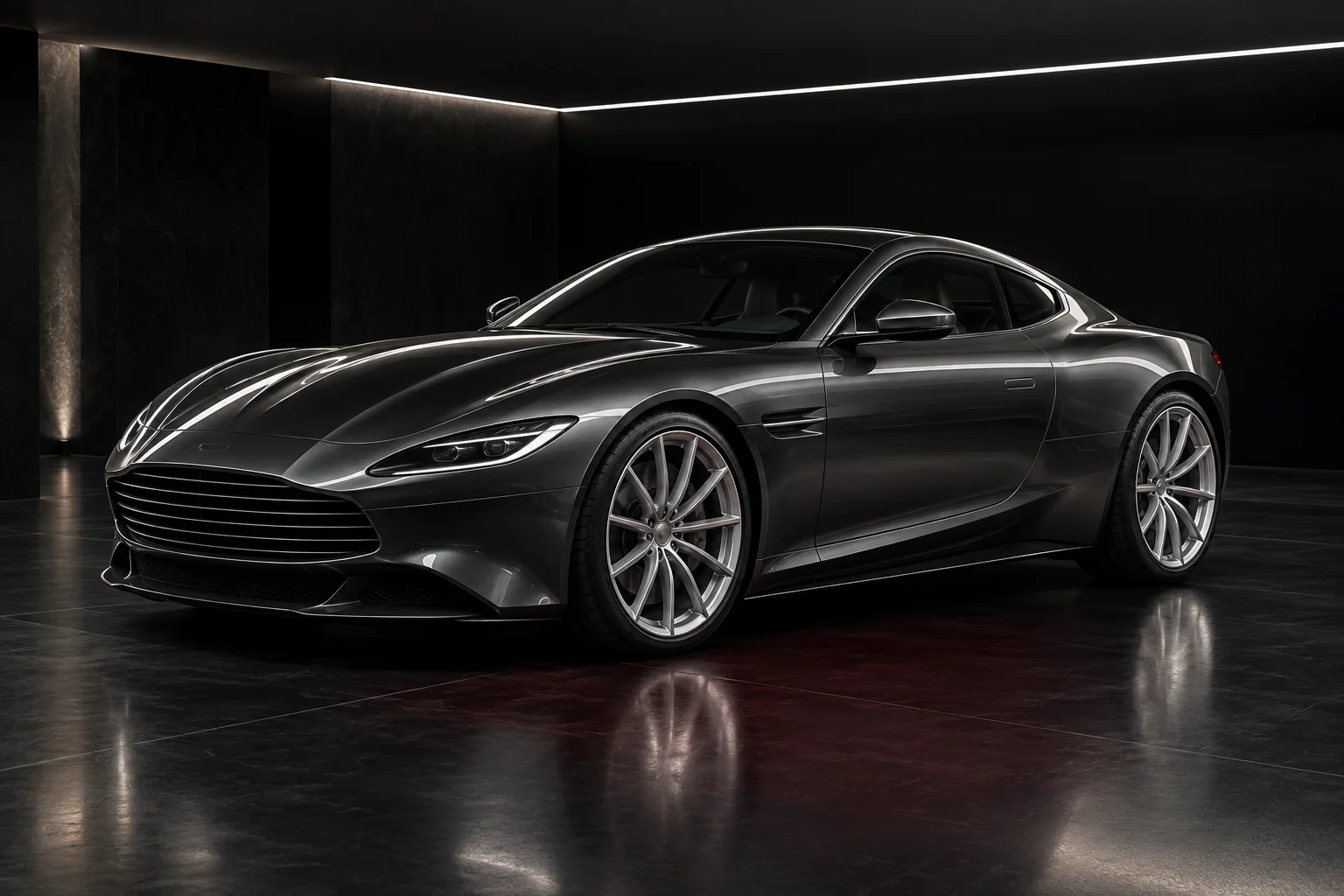 BodyWheelsLight
What this preview cannot verify
No formula match. The preview does not identify or reproduce an OEM or custom paint code.
Display color varies. Monitor calibration, ambient light and compression affect perceived color.
Finish is illustrative. Flake, pearl and gloss behavior depends on real materials and application.
07 / FAQ
Before your first preview
What to upload, what to expect and what to do with your result.
Back to the tool01Can I enter a hex color?+
Yes. It provides a clear digital color direction, though it is not a physical paint formula.
02Will windows and wheels change color?+
The edit is intended to target painted body panels and preserve other areas, but generated concepts can contain imperfections.
03Can it match an OEM paint code?+
No. Confirm OEM or supplier codes with physical samples and official documentation.
04Which photo gives the best color preview?+
Use a sharp daylight three-quarter view with visible panels and limited glare.
05Which photo formats and file sizes work?+
Use JPEG, PNG or WebP, up to 8 MB per image. Export HEIC photos to a supported format first. Keep enough detail to distinguish the edited area; a sharp, sensibly sized photo is more useful than a blurred large file.
06Do I need to sign in or pay?+
No login or payment is currently required for this preview. Availability depends on the image service being able to accept requests.
07How long does generation take?+
Timing varies with the image, processing and service demand. There is no fixed completion-time guarantee. Follow the displayed status and let an active request finish before starting it again.
08How long can I access my result?+
Results are private to this browser session, with access expiring after 7 days. Download images you want to keep before then. External AI services receive images for editing and quality checks and may retain them under their own policies. Access expiry does not guarantee deletion from those providers.
09What should I do if the request fails?+
Follow the displayed error. For an upload issue, check the format and 8 MB limit; for an unsuitable image, use a clearer photo. For a temporary service error, wait and retry. An expired result or lost browser session cannot be recovered using the old private link.
YOUR PHOTO. YOUR NEXT LOOK.
Try a new body color
Add a daylight photo, choose your color and compare one of the four finishes against the original.
Preview a paint color